Add or correct distortion, lateral chromatic aberration, and/or rotation
Radial Geometry adds or corrects distortion, lateral chromatic aberration (LCA) and/or rotation, all of which are radially-symmetric operations (they are applied in polar coordinates).
- It can correct distortion using coefficients calculated in Distortion, SFRplus, Checkerboard, or Dot Pattern.
- It can add distortion to images using the same coefficients as the modules listed above. This can be useful for testing.
- It can add or correct Lateral Chromatic Aberration to images.
- It can rotate images.
- It can operate on batches of images, automatically reading, processing and saving images in the batch.
To run Radial Geometry, open it in the Utilities dropdown menu of the Imatest main window. It will request a file, then display it. It can also be opened from Image Processing.
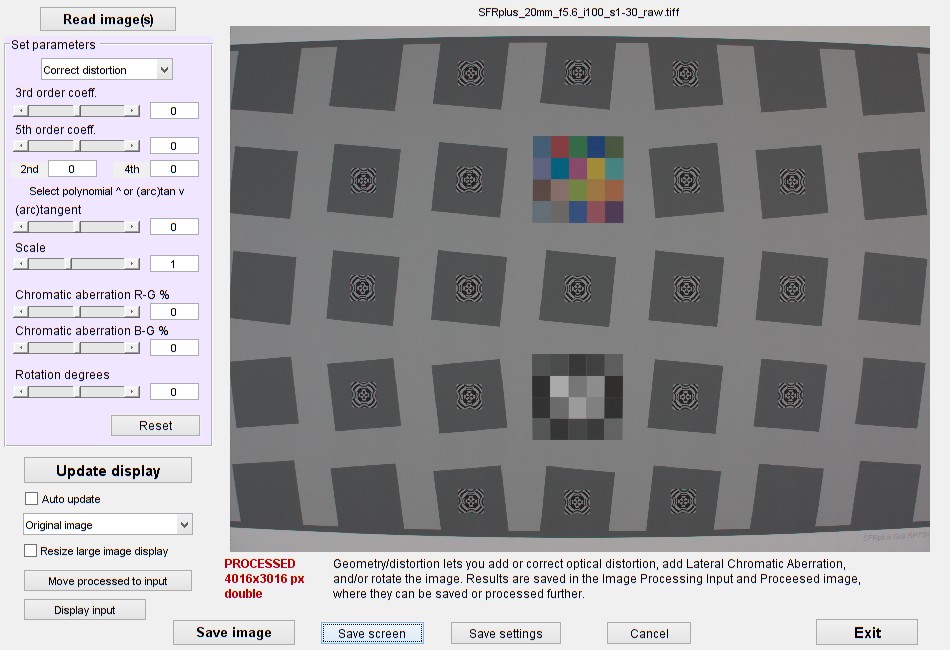 Radial Geometry opening window.
The image is from a dcraw-converted image (with no distortion-correction).
The image is from a camera that outputs both JPEG and raw images. The JPEGS are corrected for distortion (there is a small amount but it's hard to see). The dcraw-converted image has no distortion correction.
If multiple files are entered, a batch run (read, process, then save the processed images) will be performed using the saved settings.
Once the image has been read you can set the parameters using sliders or text windows. For all distortion coefficients you can use values calculated in Distortion, SFRplus, Checkerboard, or Dot Pattern.
| Parameter | Description |
| Add/correct distortion | The distortion operation: Add or correct. Uses the same coefficients, but works in different directions. Correct calculates ru (undistorted radius) as a function of rd (distorted radius). |
| 3rd order distortion coefficients | k3 from ru = rd + k3 rd3 where k1 > 0 for barrel distortion and k1 < 0 for pincushion. ru (undistorted radius) and rd (distorted radius) have units of center-to-corner distance. |
| 5th order distortion coefficient |
k5 from ru = rd + k3 rd3 + k5 rd5 where the determination of barrel or pincushion is not simple. "Mustache" or "wave" distortion can occur when k3 and k5 have a similar magnitude, but sign(k3) ≠ sign(k5). |
| 2nd, 4th order distortion coefficients | k2 and k4 from ru = rd + k2 rd2 + k3 rd3 + k4 rd4 + k5 rd5 These coefficients were added as an option to distortion calculations in Imatest 5.0. |
| (arc)tangent |
arctangent or tangent parameters p1, which describe distortion for ; p1 > 0 (barrel distortion) ; p1 < 0 (pincushion distortion) These equations are from an image editor used by the Imatest author for editing his fine art images. |
| Note that either polynomial (nth order coefficient) or (arc)tangent distortion can be entered, but not both. | |
| Scale | Scales the display, which can be affected by distortion parameters. Some auto scaling is performed so that magnification near the edges of the image is relatively consistent, but you may still want to change the settings to view extreme corners of the image, etc. |
| Chromatic aberration R-G % | R-G CA percentage p where (1+p/100) is the radial multiplier of the Red channel with respect to the Green channel, which remains constant. ±2% maximum. |
| Chromatic aberration B-G % | B-G CA percentage p where (1+p/100) is the radial multiplier of the Blue channel with respect to the Green channel, which remains constant. ±2% maximum. |
| Rotation degrees | Rotate the image by the specified amount. ±4 degrees maximum. |
| Reset | Reset values to their defaults. 0 for distortion, CA, and rotation; 1 for scale. |
When you have selected the settings you want, press Update display to view the results.Several additional operations are available.
| Button | Description |
| Update display Display is current Working | Update display (only needed when Auto update is unchecked) Displays after image updated (display is synchronized with parameter settings) Displays only when image is updating |
| Auto update | When checked, image is updated whenever a parameter setting is changed. Checked by default. May slow down operations for large images. |
| Image display (Original image, etc.) | Image display setting: can display individual channels, increased saturation, lightened, tone-mapped, etc. |
| Resize large image display | When checked, large images are resized for display. This speeds things up. Save image always saves the full-sized image. |
| Move processed to input | Moves the processed image to the input. This can be useful for testing "round trips", e.g., adding then correcting distortion. |
| Display input/processed | Toggles between input and displayed image. |
| Save image | Save the processed image. The full-sized image is always saved, even if Resize large image display is checked. |
| Save screen | Display and/or save the screen. An image viewer must be selected for this to work. |
| Save settings | Save the settings |
| Cancel | Exit Radial Geometry without saving the settings. |
| Exit | Exit Radial Geometry. Save the settings and return the processed image if Radial Geometry has been called from an external program. |
Example: The image in the opening window was run in SFRplus Setup with the following results, shown cropped.
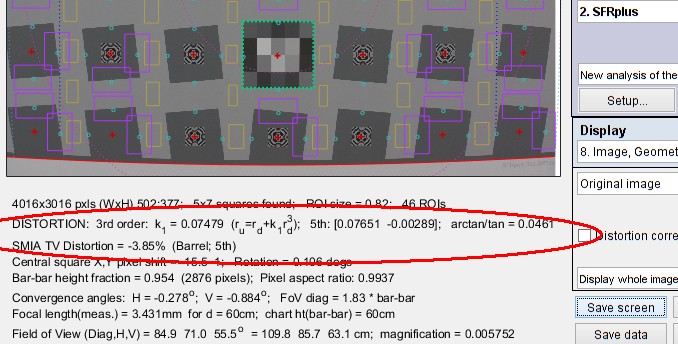 SFRplus Setup results for above image, showing distortion calculations
This figure shows results of the distortion calculation for the best of the three models (3rd order, 3rd + 5th order, (arc) tangent) for the image in the opening window, above. The 5th order calculation had the lowest error. When the numbers from this calculation (0.0765 and 0.00289) are entered into the appropriate windows (with Correct distortion selected) and Update display is pressed, we get the following result.
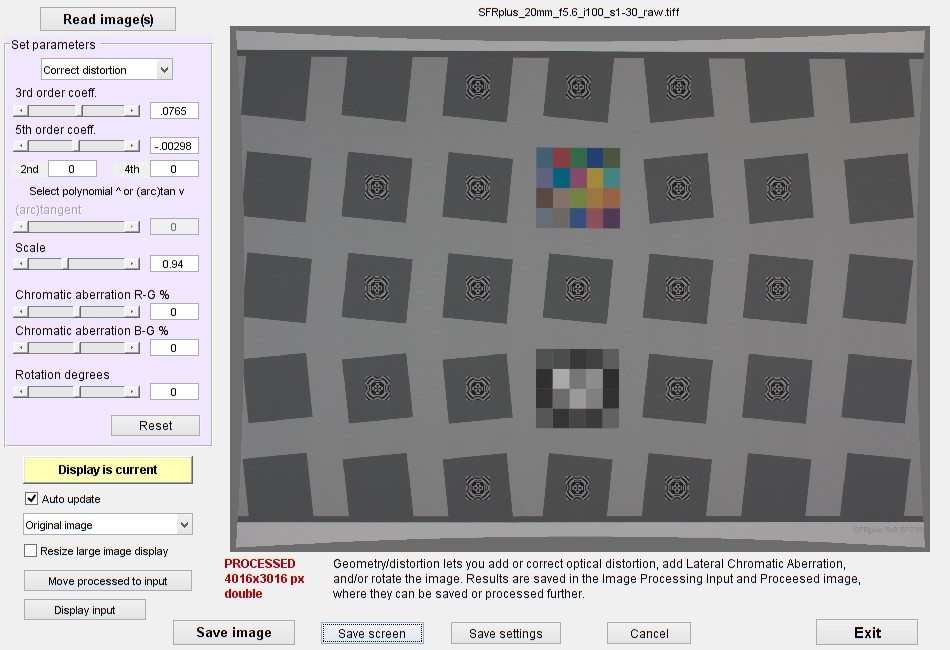 Corrected image using parameters from SFRplus Setup
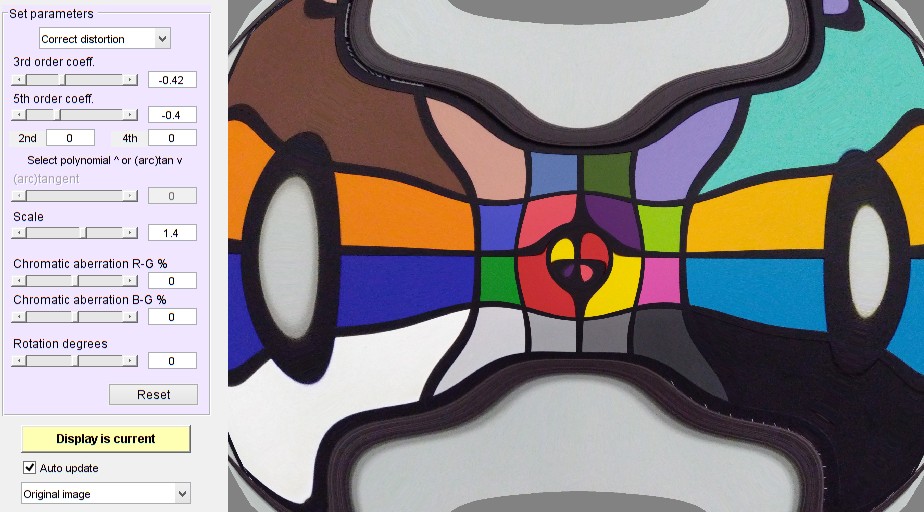
Note that strange results are sometimes observed when large values of distortion parameters are entered. These are numerical issues, and generally occur when the parameter is larger than justified by the actual system. Here is a rather artistic example.