Regmark detection for SFRreg images is significantly improved in Imatest 22.1. It allows the user to indicate the location of Reg Marks. This is especially useful in situations of: low-contrast marks, blurry marks, high noise, or small targets.
Accessing Detection Settings
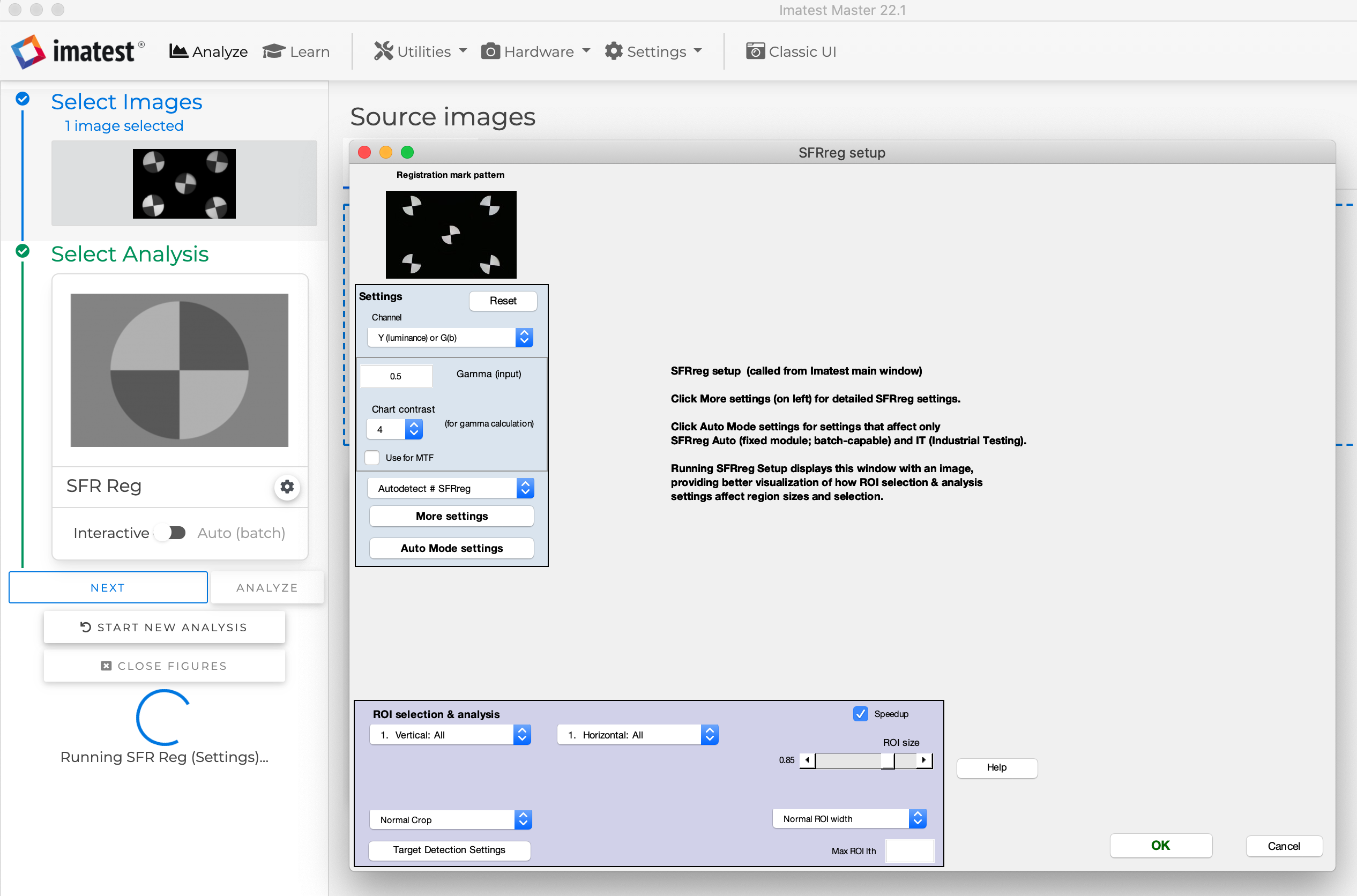
The Target Detection Settings window is accessible by clicking "Target Detection Settings" at the bottom of the SFRreg Settings window:
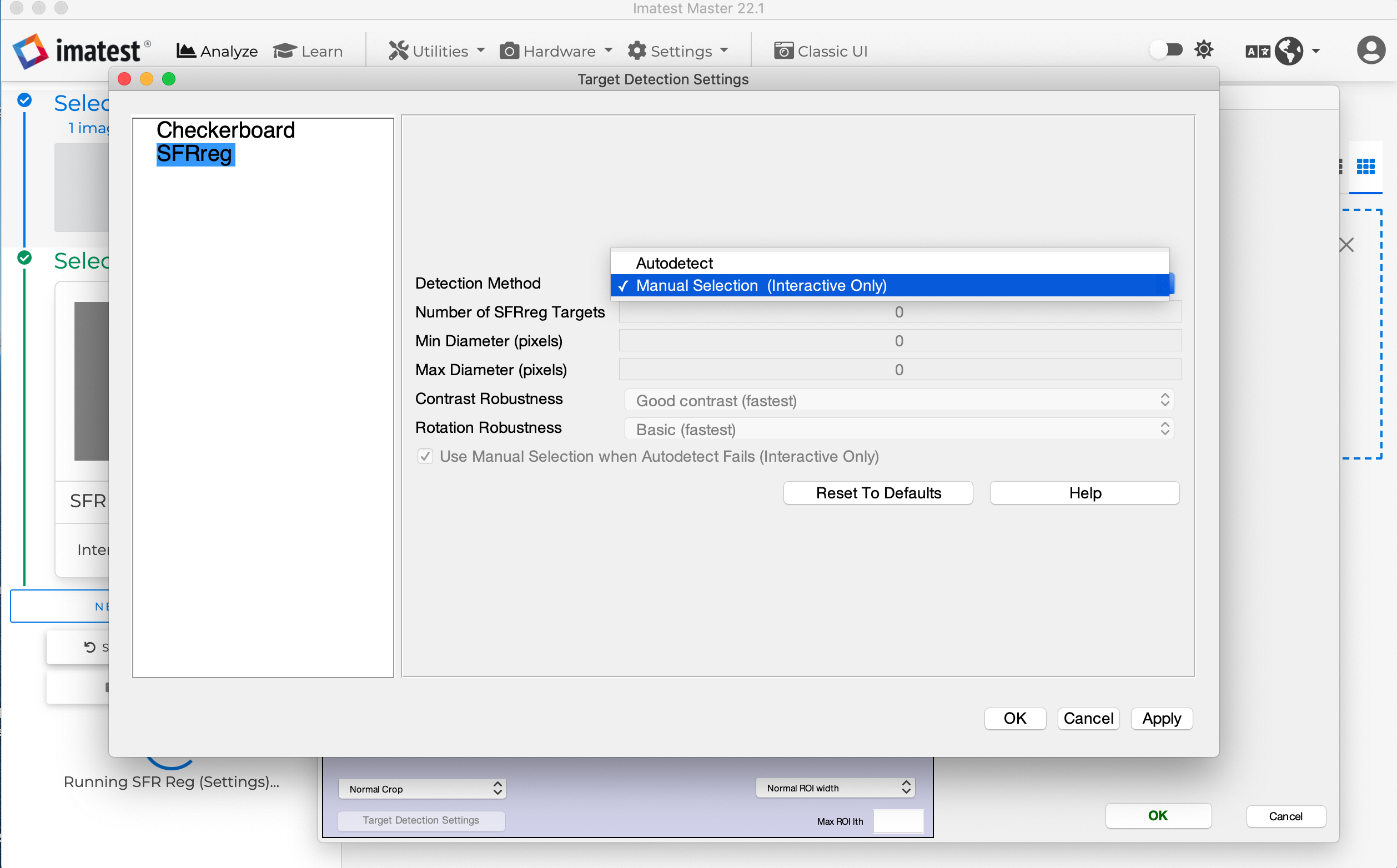
When you click the Target Detection Settings button, the window will appear (see below).For most images, Imatest will autodetect the RegMarks. (Autodetect is the default option for RegMark detection.)
If a target is difficult to detect, choose Manual Selection in the Target Detection Settings window. Then click Ok. Now, when you analyze an SFRReg image in interactive mode, the Regmark Manual Selection window will appear.
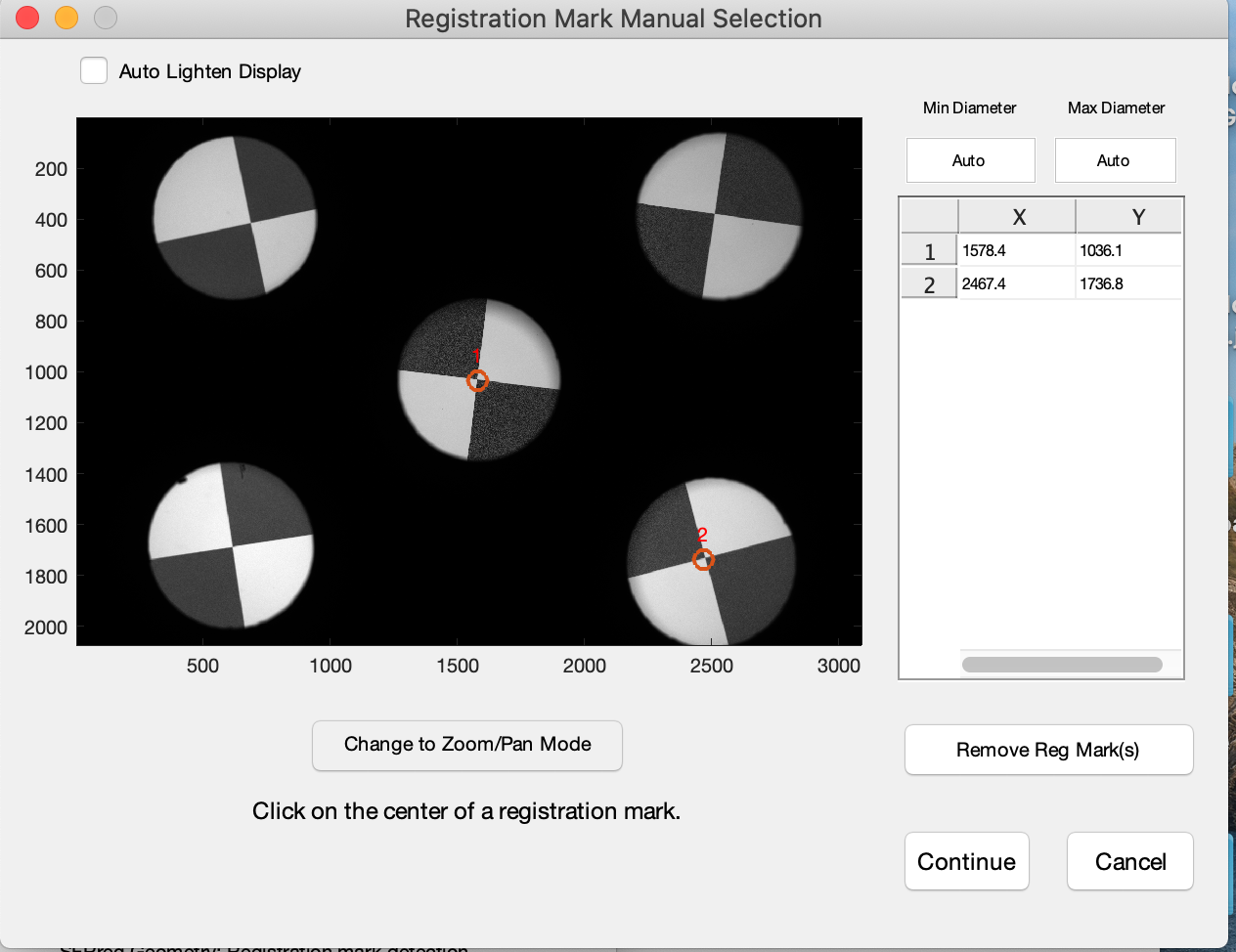
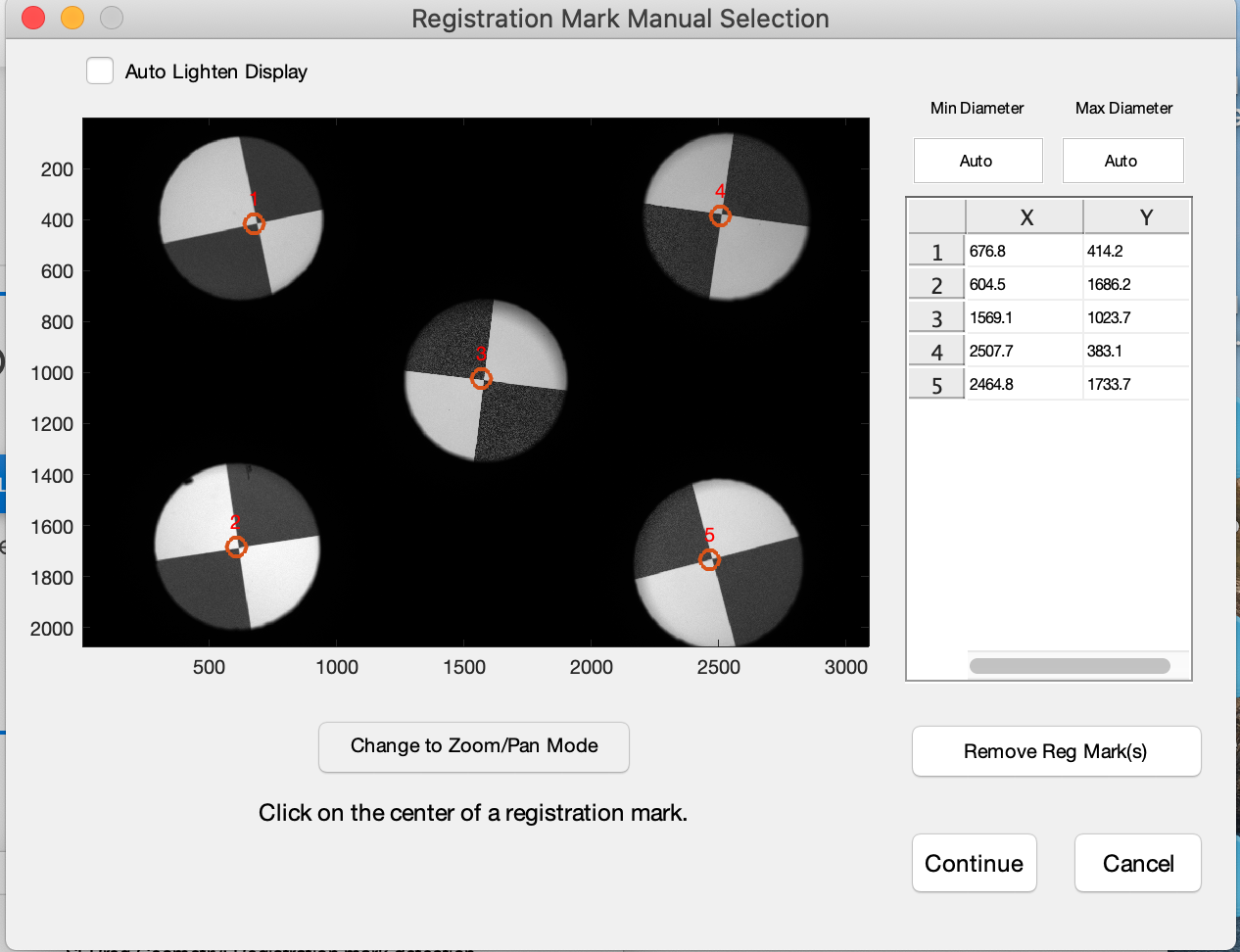
Using the Registration Mark Manual Selection window, click on the center of each Reg Mark. Use Selection mode to click on RegMarks. Use Zoom/Pan mode to zoom on the mark to make it larger.Continue clicking on the Reg Marks, until they all have been selected. You will see the X,Y values of each mark show up in the window to the right. If you need to remove one of the marks you have selected, click on the row, and click the "Remove Reg Mark" button. When all Reg Marks have been marked, click continue, and the Analysis will continue. It is very important to click as close as possible to the center of each RegMark, to give Imatest accurate information about what marks are present. When all marks have been identified, choose "Continue", and image analysis will progress..