Monitor Imatest Operations in Real Time
Introduction
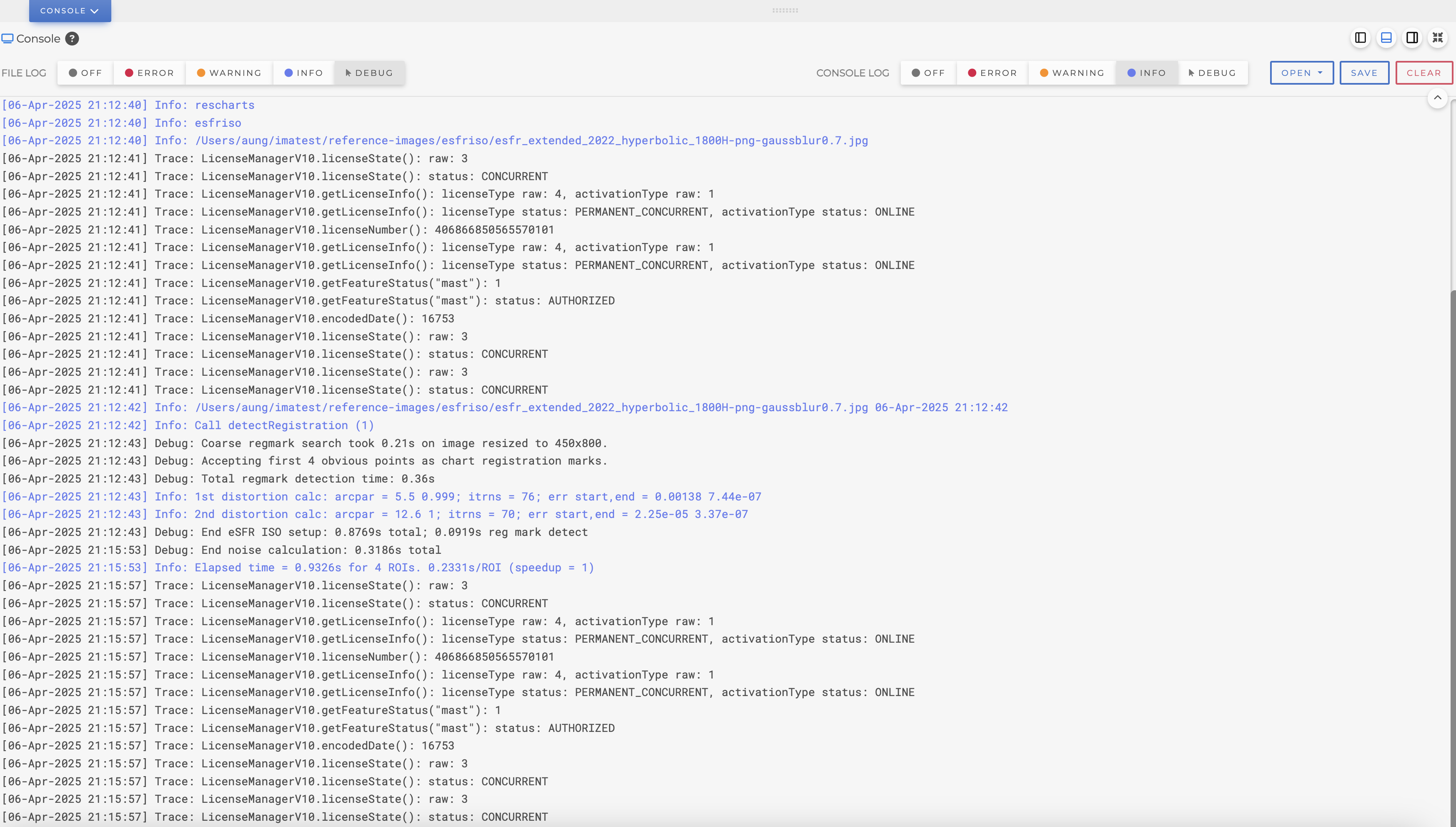
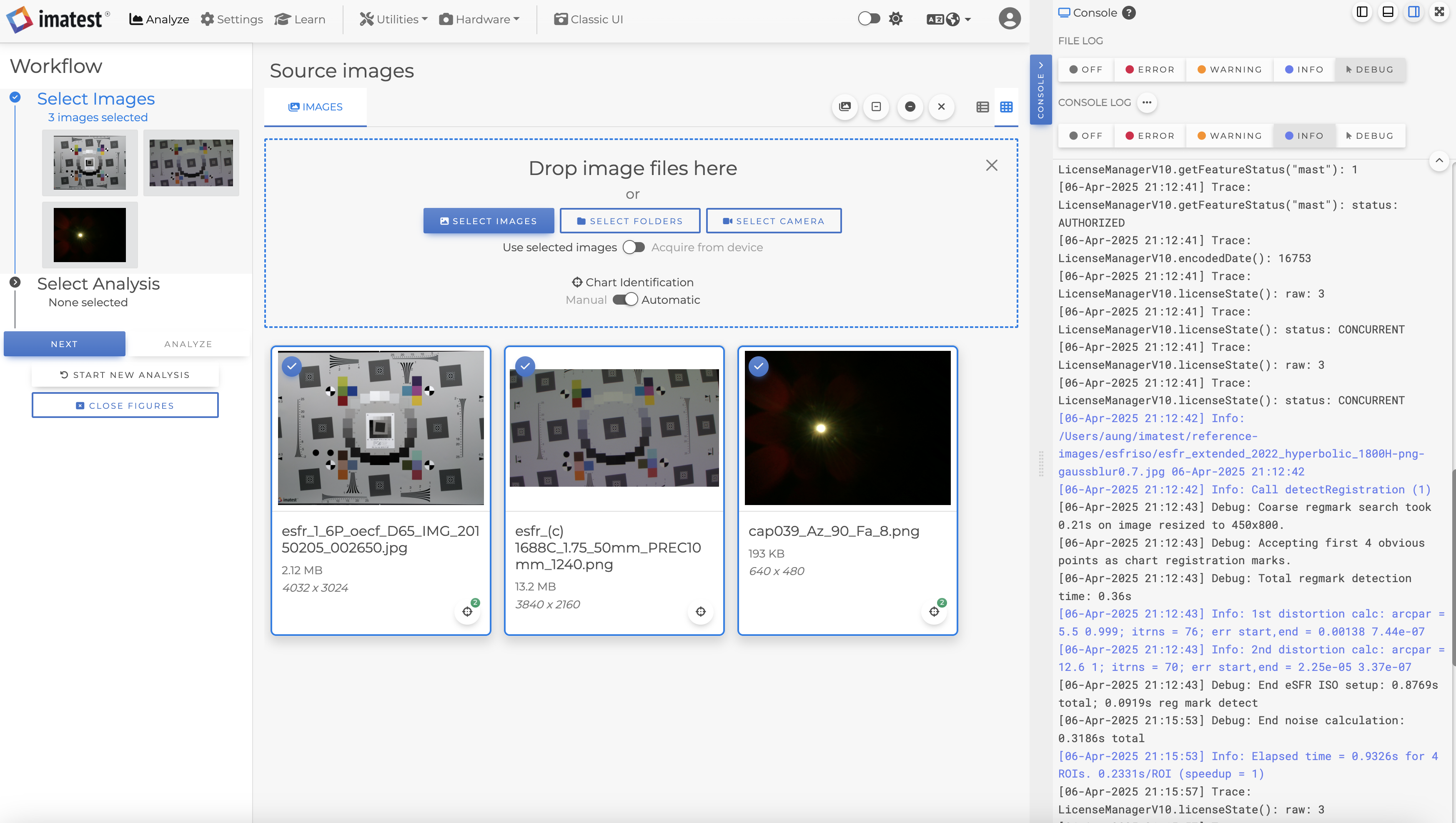
The Imatest Console Panel allows you to monitor, in real time, all errors, warnings, and informational messages during image processing and other operations, all within Imatest itself with color-coded text color denoting severity. It also gives you easy access to your imatest.log, sessionlog.txt, and session-save.txt files with just the click of a button.
To get started, click the new Console button at the bottom of the screen to open the Console panel. You can click and drag the top of the panel to resize it to your liking, and hide it by clicking the Console button again.
Imatest provides users with two log level settings: File Log and Console Log. For each setting, all messages with a higher severity will also be displayed. For example, if you select Info as your setting, the log will include all Info, Warning, and Error messages. For more information on Imatest Logging, see this page.
Imatest Log Settings
Imatest writes log messages to two place: the imatest.log file (located in your default INI folder), and the Console Panel on the Main Window. Imatest enables you to control which log level to display for each, allowing you to only monitor higher-severity messages in the Console, while recording more detailed logs in the imatest.log file, for example.
The log level settings are stored in the INI file under the [imatest] section.
- File Log: this setting controls which messages are written to the imatest.log file, which can be found in your default INI Folder. INI key: fileLogLevel
- Console Log: this setting controls which messages are written to the Console Panel. INI key: displayLogLevel
Imatest Log Levels
- Off: No messages will be written to the log file or displayed on the Console. INI value: 0
- Error: Errors that occurred during analysis or other Imatest operations, potentially causing an analysis to stop or have incomplete or invalid results. INI value: 1
- Warning: Warnings about analyses and other operations which are marginal in some way, but still allow the analysis to run without an error. For example, low confidence in analysis results due to small ROI size. INI value: 2
- Info (default): Messages about Imatest operational progress, such as modules entered, run time per analysis, and current image file name being analyzed in a batch. INI value: 3
- Debug: Detailed messages about image data and calculations at various points during an analysis. INI value: 4
Here is an example INI file excerpt that writes all Debug level messages to the file, but only display Warning messages to the Console Panel:
[imatest]
fileLogLevel = 4
displayLogLevel = 2
Console Panel
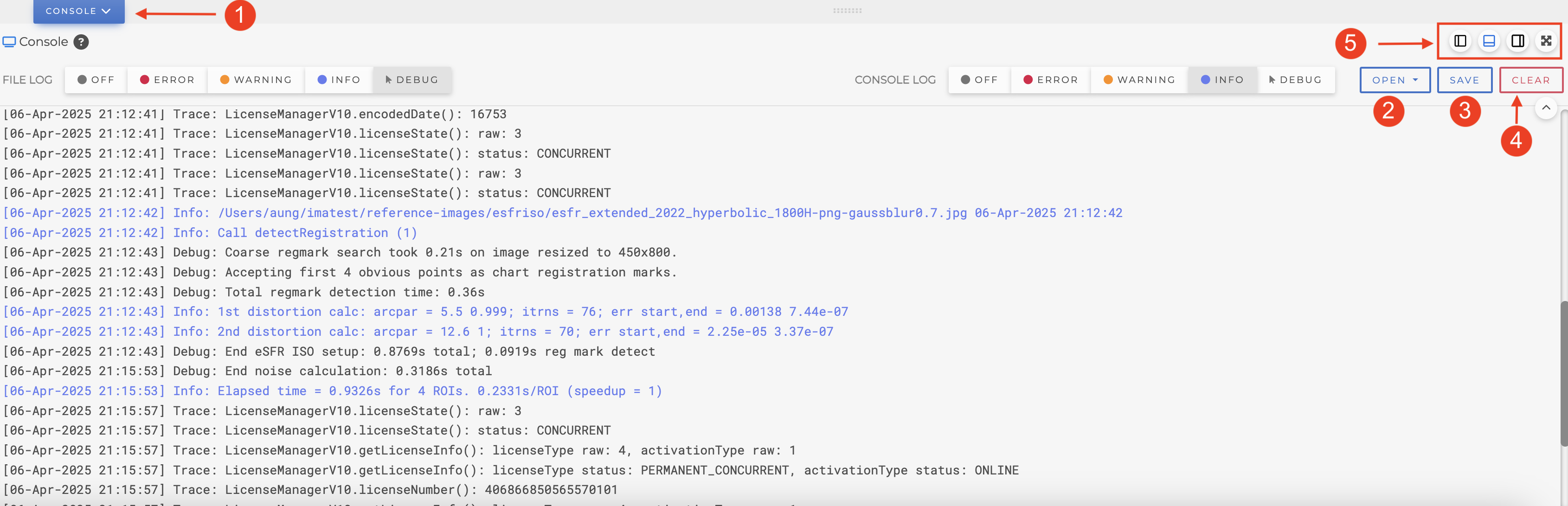
1 - Console Tab: Click this to open or close the Console Panel.
2 - Open: Automatically opens various logging files in your default text editing program, including the Log File (imatest.log), Current Session File (sessionlog.txt), Last Session File (sessionlog-save.txt), or the Log Folder (which is the same as your default INI folder)
3 - Save: Saves the contents of the Console Panel to a file of your choosing. This can be convenient for sharing specific log information with the Imatest support team.
4 - Clear: Clears the contents of the Console Panel (note that this does not affect the log file, only what is visible on the screen).
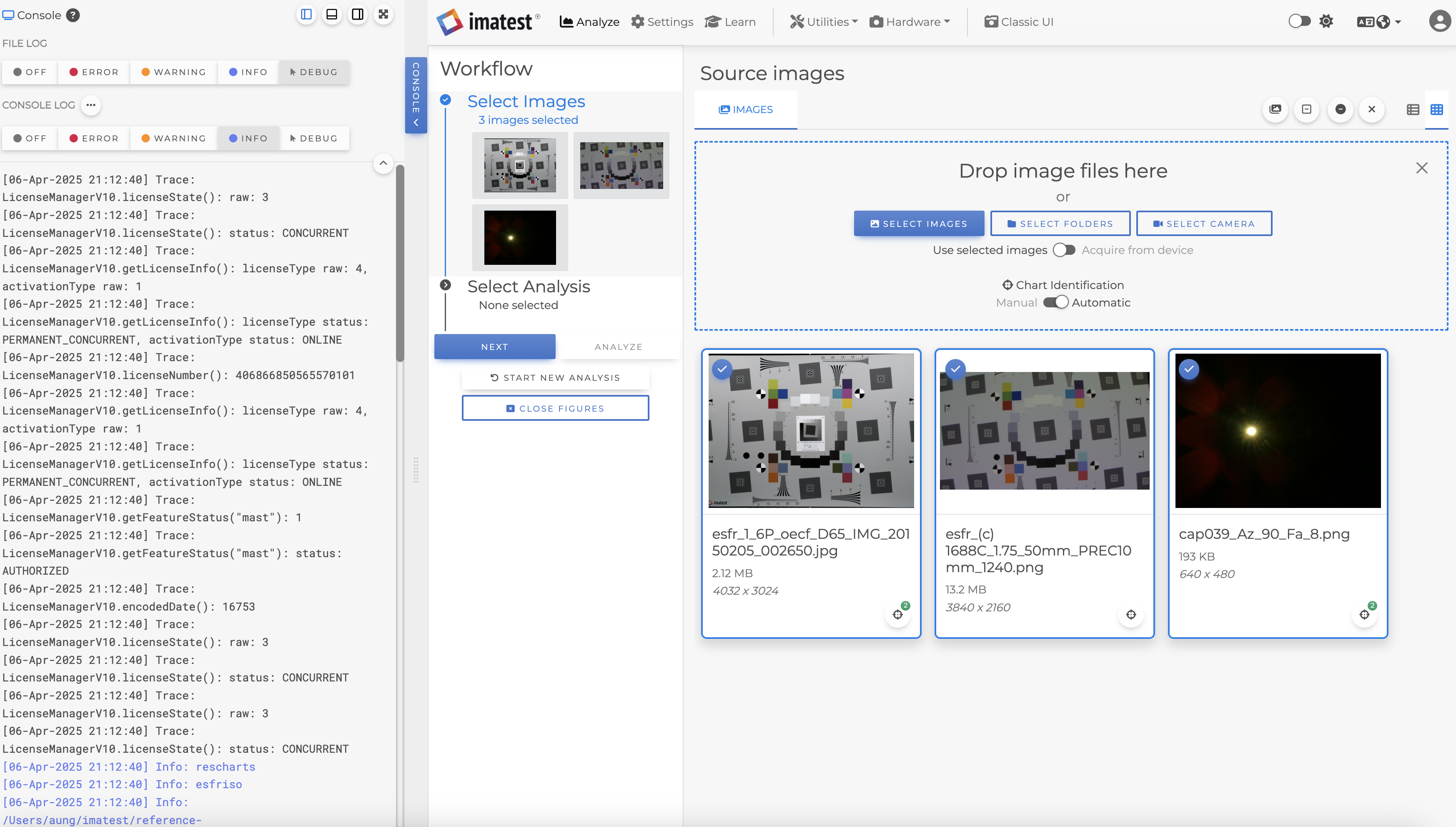
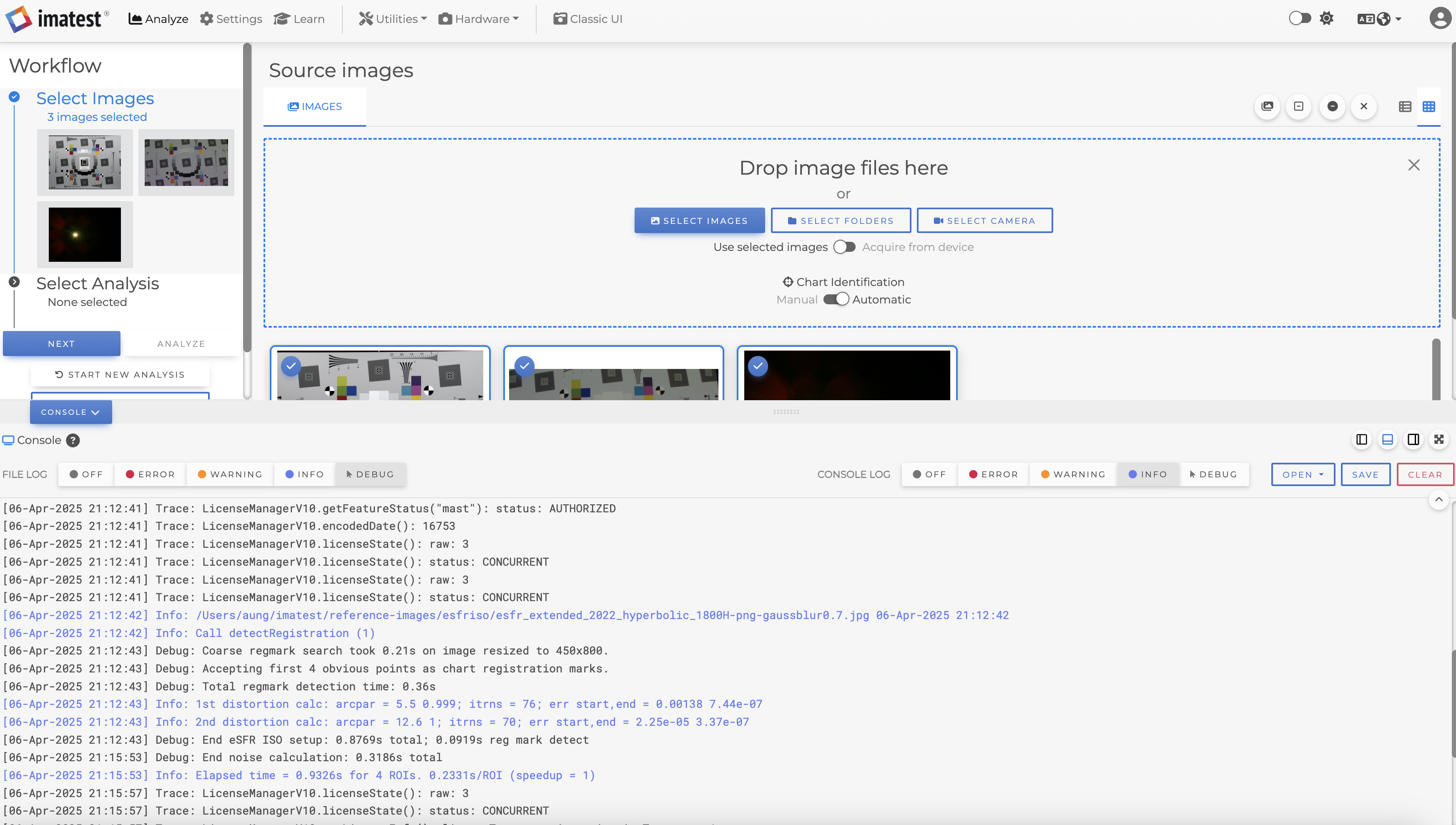
5 - Docking: The console panel is dockable to the left, bottom, and right of the primary Imatest window, with adjustable panel size and the option to enter a full-screen view.
Example of docking options:
Docking to the left
Docking to the bottom
Docking to the right
Full screen mode