通过/失败监视器( Imatest 4.0中引入)可实时指示设备是否通过测试。它省去了查找结果(无论是数字、CSV 还是 JSON 文件)的麻烦。主要功能:
- 它可以保持打开状态,在模块运行时立即显示计算结果。它在高分辨率屏幕或双屏系统上效果最佳。
- 它可与大多数Imatest分析模块兼容。
- 它对于开发和测试Imatest IT(工业测试)的合格/不合格标准非常有价值。它可以调用多个实用程序来辅助此过程。
- 它会显示通过/失败结果(在一个大表格中,为了便于阅读而进行了解析),以及通过/失败数据结构或通过/失败历史记录(自启动Imatest后首次打开通过/失败监视器以来通过/失败摘要结果的日志)。
- 结果存储在全局工作区中,因此可以关闭并重新打开 P/F 监视器而不会丢失结果(即通过/失败历史记录)。
介绍
通过实用程序菜单或按Rescharts或Color/Tone Interactive中的文件、通过/失败监视器打开通过/失败监视器。
以下是显示器的一个示例。SFRplus 图像已根据相当多的合格/不合格标准进行了测试。该图像有两项测试未通过(因此标记为“不合格 - 2” ),原因是相机锐化过度——锐化程度超过了最大值,这也导致中心 MTF 值超过了最大值。
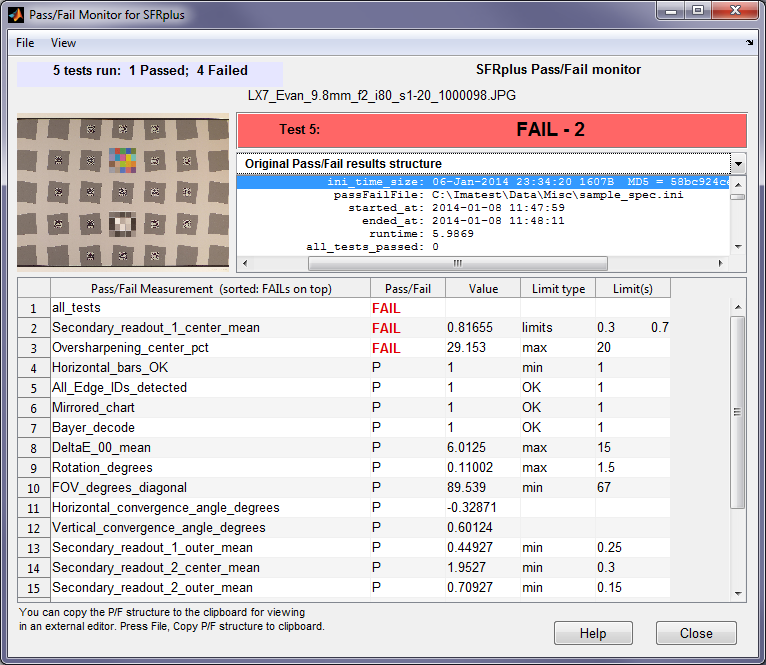
为了便于阅读,关键的通过/失败结果已进行解析,并显示在占据窗口大部分区域的大表格中。结果包括:
合格/不合格测量,不合格或合格(P) ,测量值,限值类型,限值(来自 spec.ini 文件)
缩略图右侧的方框(上方)包含以下内容:
- 原始的(未经解析的)通过/失败结果,虽然可能难以阅读,但包含了所有结果。(这是打开时的默认设置:您可以使用此框上方的下拉菜单进行更改。)
- 历史日志(CSV 格式) (在启动Imatest后首次打开通过/失败监视器时初始化)。
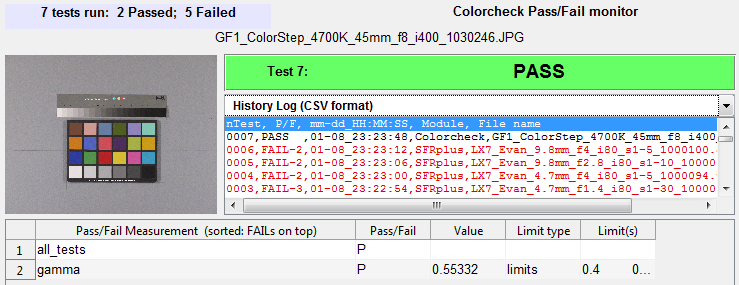
显示已通过测试的通过/失败监控结果,并显示历史记录日志
(编号、及格/失败、日期/时间、模块、文件名:最新结果显示在最上方;失败结果以红色显示)
当测量通过时,大结果框会显示为绿色。
Setting up Pass/Fail
We summarize the setup here. Details are presented in Implementing Pass/Fail in Imatest.
- Create an ini Pass/Fail file that embodies your specification, i.e., contains maxima, minima, or limits for the measurements of interest. (This file is sometimes called a "spec.ini" file.) You may use a text editor or the Imatest INI file editor. Available measurements are shown in Implementing Pass/Fail. Measurements need to be hard-coded into Imatest (though thresholds can always be set by the user). If you don't find a measurement you need, please write us at support at imatest dot com, and we'll try to add it to the current beta build with 1-3 days.We plan to make some standard Pass/Fail files available, starting with the Skype & Lync Video Capture Specification.
- Add a link (variable name passFail) to the file location in the [api] section of imatest.ini (or the ini you use for running Imatest): [api]
passFail = C:ImatestDataMiscsample_spec.ini - Run Imatest, then open the Pass/Fail monitor from the Utility menu or by pressing File, Pass/Fail monitor in Rescharts or Color/Tone Interactive.
Notes on the example:
[sharpness] refers to sharpness modules in Rescharts (other than automatically-detected slanted-edge modules) or derived from Rescharts, including SFR, Star, and Random.
[multi] refers to any of the Color/Tone Interactive or Color/Tone Auto chart measurements (grayscale and color charts).
[sfrplus]
; Secondary readout 1 is probably [email protected] C/P
; Secondary readout 2 is probably [email protected] C/P
MTF50P_ratio_min = .2
Rotation_degrees_max = 1
FOV_degrees_diagonal_min = 65
Convergence_angle_max = 5
Secondary_readout_1_center_mean_min = .4
Secondary_readout_1_outer_mean_min = .2
Secondary_readout_2_center_mean_min = .71
Secondary_readout_2_outer_mean_min = .61
Secondary_readout_1_all_min_min = .6
Mirrored_chart = 1
Bayer_decode = 1
Horizontal_bars_OK_min = 1
All_Edge_IDs_detected = 1
Stepchart_expected_detected = 1
Color_expected_detected = 1
Chart_mean_pixel_level_bounds = .3 .8
Low_pixel_saturation_fraction_max = .3
High_pixel_saturation_fraction_max = .3
Chart_radial_pixel_shift_max = 30
[blemish]
Dead_pixels_max = 10
Hot_pixels_max = 10
; Optical_center_offset_max = 300
Relative_illumination_worst_corner_pct_min = 45
Uniformity_RoverG_corners_pct_max = 15
Uniformity_BoverG_corners_pct_max = 15
Blemish_size_pixels = 20 120
Blemish_maximum_count = 2 1
[colorcheck]
Delta-C_2000_mean_max = 5
Delta-C_2000_max_max = 5
[multi]
Delta-C_2000_mean_max = 5
Delta-C_2000_max_max = 5
Delta-C_mean_max = 5
Delta-C_max_max = 5
公用事业
可以通过下拉菜单打开多个实用程序。
| 文件下拉菜单 | |
| 复制 P/F 结构 复制到剪贴板 | 将原始 P/F 结构复制到剪贴板,以便粘贴到编辑器中进行保存或查看。该结构格式为:左侧为字段名称,中间为冒号“:”,右侧为值。它通常包含比下方解析后的 P/F 结果更多的信息(尽管更难阅读)。例如: ini_time_size: 2013年11月13日 17:09:35 passFailFile: C:\Imatestprojects\Spec.ini 开始时间:2014-01-03 15:19:37 结束时间:2014-01-03 15:19:44 运行时间:5.6879 所有测试均通过:0 Horizontal_bars_OK_min: 1 Horizontal_bars_OK: 1 Horizontal_bars_OK_passed: 1 |
| 复制 P/F CSV 结果 (复制到剪贴板) | 将解析后的结果(CSV 格式)复制到剪贴板,以便保存或导入到 Excel 中。结果格式如下: P/F 测量值(排序方式:失败项在前)、通过/失败、值、限值类型、限值。 例子: |
| 复制 CSV 历史记录 (复制到剪贴板) | 将 CSV 历史日志复制到剪贴板——主要用于导入 Excel,以便在 Excel 中进行详细查看。复制后,日志行按升序排列(最近一次运行的结果排在最后)。这与显示方式相反,显示方式中最新的结果会显示在顶部。此外,最多可以显示 2000 条结果,而显示方式最多只能显示 50 条。 |
| 重置测试统计信息 | 重置已运行、已通过和已失败的测试数量。大多数显示内容也将被重置。 |
| 查看下拉菜单 | |
| 狭窄的 | 针对窄屏显示器优化窗口。在小尺寸显示器上可能很有用。 |
| 宽屏(默认) | 针对宽屏显示器优化窗口。(默认) |
| 编辑下拉菜单 | |
| 编辑通过/失败 INI 文件 | 在 Imatest INI 文件编辑器中打开 Pass/Fail 文件,该编辑器对于编辑现有文件非常方便:您可以添加、修改或删除行或节。 |
| 复制 P/F INI 文件名 (复制到剪贴板) | 将通过/失败文件名复制到剪贴板:以便将其粘贴到您选择的编辑器的“打开”对话框中。 |
| IT设置 (选择 P/F INI 文件) | 打开“IT设置”窗口(适用于Imatest工业测试版本)。您可以在此窗口中指定通过/失败文件。 |
| 帮助下拉菜单:在浏览器中打开包含通过/失败信息和说明的网页。 | |