许可证激活说明:Imatest 节点锁定许可证一次只能在一台计算机上激活,但激活状态可以在计算机之间转移。您可以在任意数量的计算机(包括 Macintosh 和 Windows 系统)上安装Imatest ,并保持其安装状态。要将激活状态转移到另一台计算机,您需要先在旧计算机上停用许可证,然后在新计算机上按照上述说明进行激活。Imatest浮动许可证无需停用和重新激活步骤,因此可以更轻松地在多台计算机之间共享。点击此处了解更多关于不同许可证类型的信息。
尝试使用“之前运行正常的模块现在停止工作了”中介绍的方法,该方法在“故障排除”部分也有描述。简而言之,您需要打开INI 文件编辑器,选择与故障模块对应的部分(例如 [sfplus]),删除该部分,然后保存结果。这会初始化该部分的设置(您需要重新输入这些设置),但通常可以修复由错误的 INI 设置引起的错误。
Imatest figure: You can resize it or zoom in on individual plots. The toolbar, which includes Data cursor , is shown.
Imatestresults are displayed in individual windows called Figures. A typical figure— a result of running SFR— is shown on the right.
Figures may be resized, minimized, maximized, or closed using standard Windows operations. In addition, several Windows and Matlab-specific operations can be found in the toolbar at the top of the image.
The first four icons in the toolbar are standard Windows icons: New file, Open, Save, and Print. Open and Save refer to Matlab .fig figures, which should be used sparingly because they require excessive storage.
Of the remaining icons, Zoom in: is particularly useful. Clicking on it highlights it and enables you to zoom in on regions of the plots. You can click and drag to create a zoom rectangle or you can click on any point to zoom in on that point. Double-clicking anywhere inside the image restores the full unzoomed image.
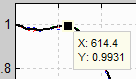
Data cursor example
Data Cursor, selected on by the toolbar icon, lets you click on a curve and display its coordinates in a small box called a Datatip. Right-clicking on the Datatip lets you can delete it or choose additional options.
In most modules, figures can be saved as either PNG files (a standard losslessly-compressed image file format) or as Matlab FIG files, which can be opened by Open Fig file in the Utility dropdown menu, then manipulated (zoomed and rotated). PNG files are usually preferred because FIG files require much more storage, especially for 3D FIG files, which can be rotated.
Too many open Figures
Figures can proliferate if you do a number of runs, especially runs with multiple regions. System performance degrades if too many Figures are open. Figures can be closed individually by clicking X on the upper right of the Figure or by any of the usual Windows techniques. You can close them all by clicking Close figures in the Imatest main window.
CSV and JSON output files
Individual Imatest modules can optionally write two types of output file that contain most results.
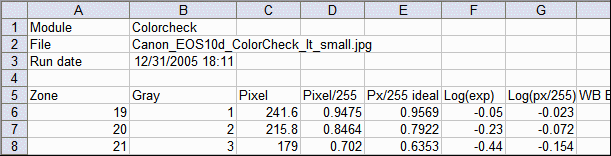
CSV files are most often displayed with Microsoft Excel.
JSON files, which contain a single large JSON structure, can be read into programs written in almost any language with a single line of code using functions linked from the JSON website. They can be displayed in any text editor.
Please contact us if you have requests or suggestions about Imatest output. [Notes: These files are not saved in evaluation mode. ]
CSV files– Excel-readable Comma-Separated Variable format. Here is an example of typical output.
JSON files are somewhat human-readable text files that contain a single structure— optimized for reading into programs written in virtually any programming language.
The full text of the Imatestlicense can be found here.
License holders are encouraged to publish test results in printed publications, websites, and discussion forums, provided they include links to www.imatest.com. The use of the Imatest Logo is encouraged. However you may not use Imatest for advertising or product promotion without explicit permission from Imatest LLC. Contact us if you have questions.
Tips for successful testing
Imatest LLC assumes no legal liability for the contents of published reviews. If you plan to publish test results, especially for MTF, you should take care to use good technique. Considerations include,
If you are working outdoors, be sure the target doesn't shake in the wind.
Target distance
Be sure you're far enough from the target (the magnification is low enough) so the printed edge quality doesn't affect the measurements. Target distance considerations are given here.
Focus
Be sure the camera is focused accurately on the target. Note whether you used manual or automatic focus. Some targets, like Spilled Coins/Dead Leaves targets, may work poorly with autofocus.
Target alignment
In most cases, the chart should be normal (perpendicular) to the optical axis of the lens. Make sure the corners, as well as the center, are in focus.
Illumination
Should be as even as possible. Use an incident light meter if needed.
Exposure
Take care not to clip (saturate) shadows or highlights. This will reduce accuracy of the results.
Raw conversion and settings
The Raw converter (in or out of the camera) and image processing pipeline, particularly Sharpening, can make a huge difference. Contrast and White balance are also important. Settings that affect contrast and transfer curve can also have a strong effect. If possible a "Linear" setting (meaning a straight gamma curve with no additional tonal response adjustments) should be used.
Gamma
SFR sharpness results are moderately sensitive to the Gamma setting: A 10% gamma error changes MTF50 by 2.5%. Gamma can be measured from slanted edges of known contrast (if ≤ 10) or from a grayscale chart by running Color/Tone Interactive, Color/Tone Auto,Colorcheck or Stepchart.
Cleanliness and filters
Lens surfaces should be clean. You should note whether you have a protective (UV or Skylight) filter. It can make a difference— more likely reduced contrast than reduced sharpness. With Imatest you can find out.
File formats
Use Raw, PNG, TIFF, or the highest JPEG quality. Never use less than the maximum resolution or JPEG quality unless you are specifically testing the effects of these settings.
Lens settings
Lens performance is a strong function of the aperture (f-stop) and focal length (for zooms). Be sure to record these settings (easy because they're saved with the EXIF data) and include them in your reports. The optimum (sharpest) aperture is of particular interest. Lens performance is also somewhat affected by the distance to the target. Rename Files can add key settings to the image file name using EXIF data.
White balance
Should be close as possible to neutral, particularly in Colorcheck.
This may seem like a lot of fuss, but the technique you develop in testing cameras and lenses will spill over to your daily photography. Alfred Stieglitz tested film and developers extensively when he discovered photography as a student in Berlin. Ansel Adams performed extensive tests in the development of his zone system. Although nobody would claim that testing is responsible for their unique vision, it certainly contributed to the skill that transformed their vision into prints of transcendent beauty.
 ▶
▶
 在桌面上,
在桌面上,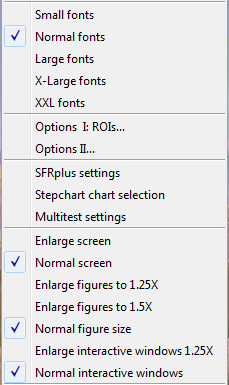
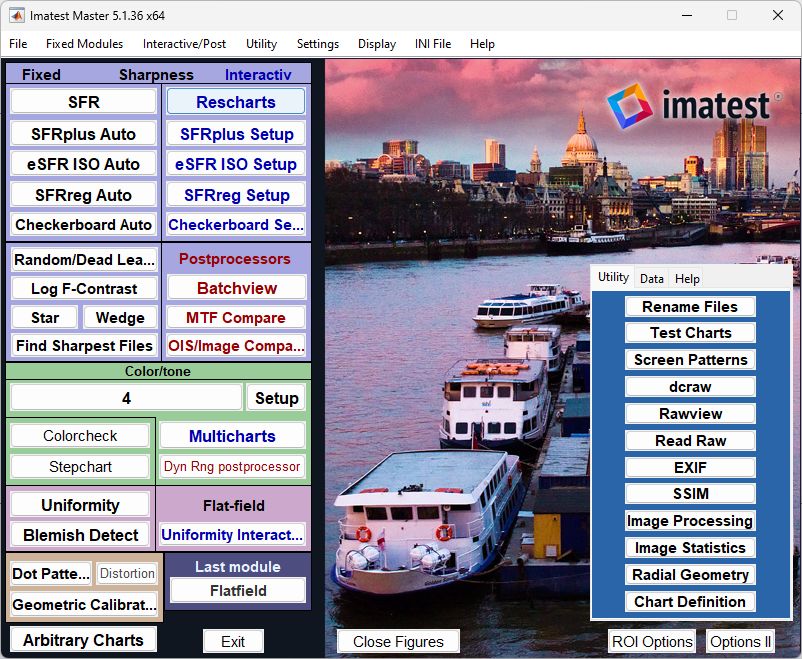
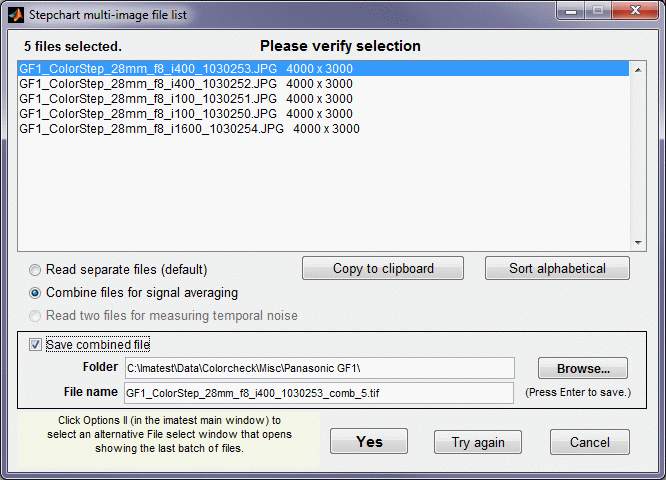
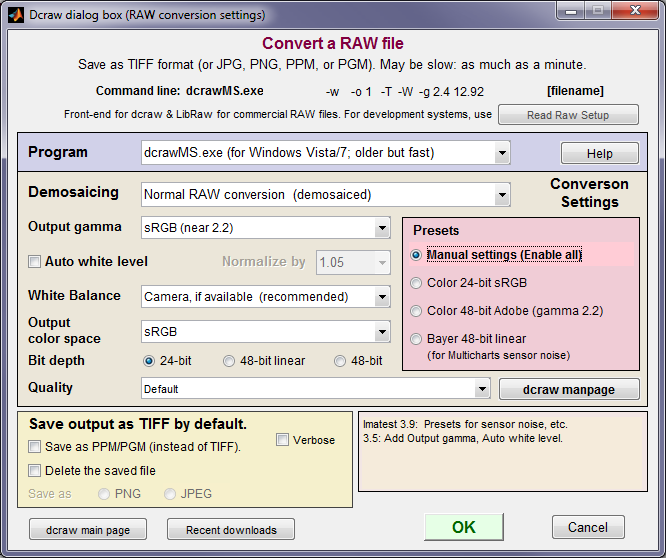 原始文件是数字图像传感器未经处理的输出。对于拜耳传感器,每个原始像素代表 RGRGRG、GBGBGB……序列中的一种颜色。为了转换为可用的标准文件格式(TIFF、JPEG 等),原始文件必须经过原始转换器处理。原始转换器执行多种功能:去马赛克(将拜耳序列转换为全彩色)、应用伽玛曲线(通常还会应用额外的色调响应曲线)、色彩校正和白平衡、降噪以及锐化图像。这些操作会影响Imatest测量结果,尤其是锐度(MTF 或 SFR) 。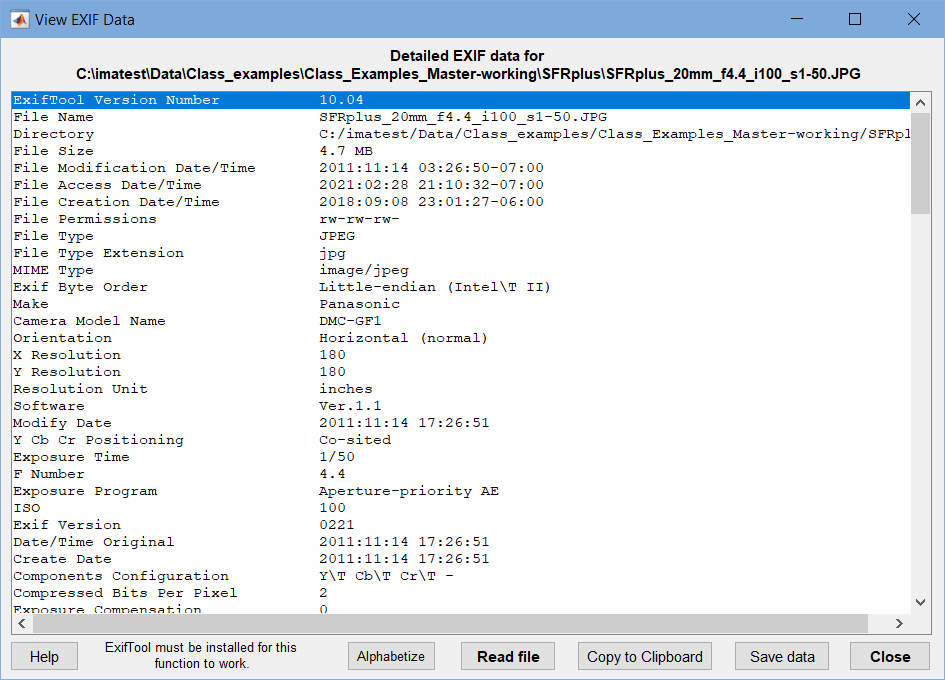
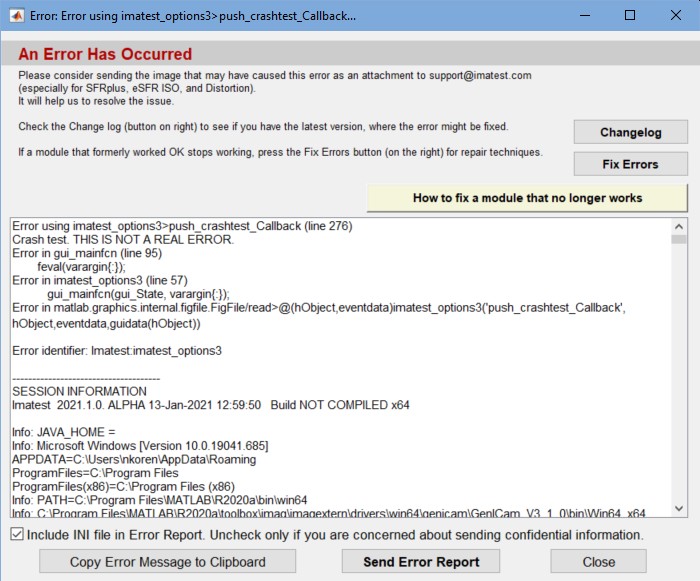 尝试使用“之前运行正常的模块现在停止工作了”中介绍的方法,该方法在“故障排除”部分也有描述。简而言之,您需要打开INI 文件编辑器,选择与故障模块对应的部分(例如 [sfplus]),删除该部分,然后保存结果。这会初始化该部分的设置(您需要重新输入这些设置),但通常可以修复由错误的 INI 设置引起的错误。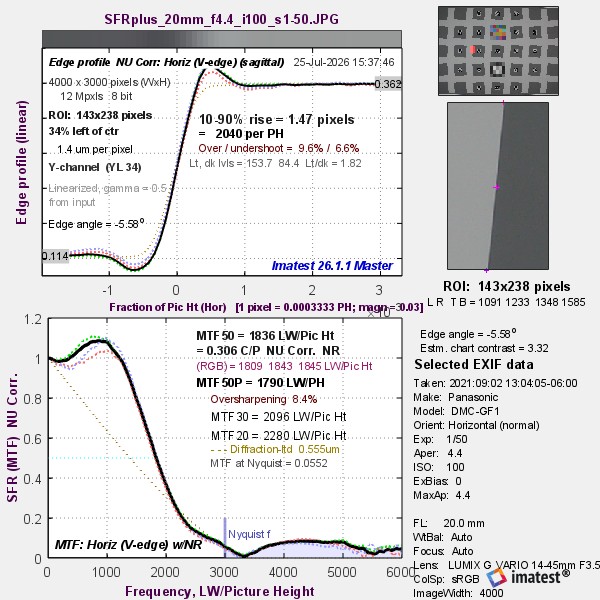
 , is shown.
 is particularly useful. Clicking on it highlights it and enables you to zoom in on regions of the plots. You can click and drag to create a zoom rectangle or you can click on any point to zoom in on that point. Double-clicking anywhere inside the image restores the full unzoomed image.